Unreal Engine - Reroute Node

Tutorial / 21 February 2025

I think reroute nodes are fairly well-known, but there were a few things I didn’t realize at first that made them much faster and more useful to work with.


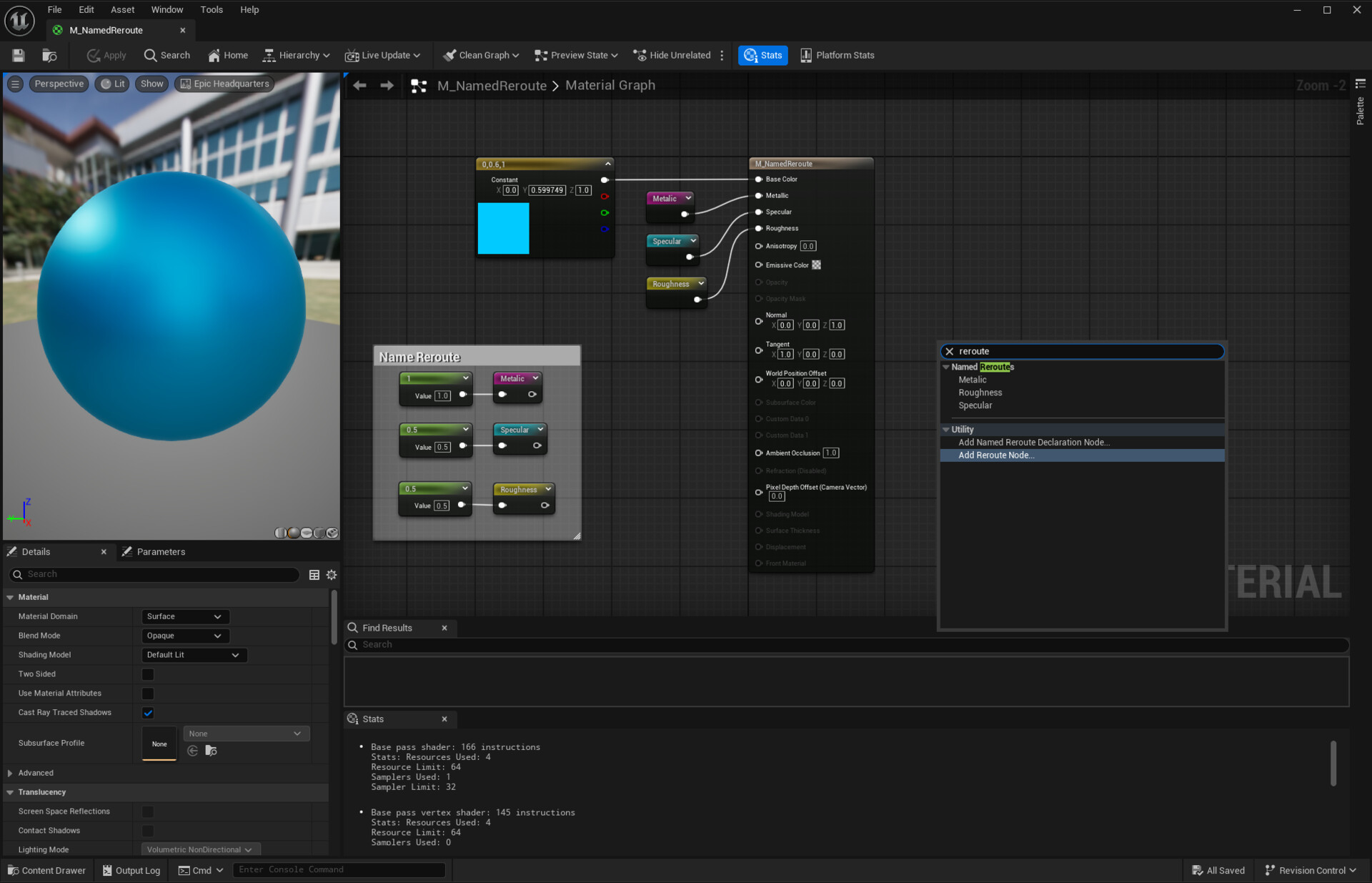
There are two ways to create reroute nodes. 

The first method is by right-clicking on the event graph—either with a clean right-click or while dragging a connection—and then typing "Reroute" in the context-sensitive menu.

The second method is even quicker: you can simply double-click on a connection line to create a reroute node instantly. This is a much faster and more efficient way to add them. One approach I like to use with reroute nodes is bringing a single connection strand closer to where the information is needed and then branching out from there. This helps avoid having multiple independent cables crossing over other blueprint nodes. 

As shown in the example above, this method keeps things much cleaner especially when the data source is far from where it's needed.
Another way to stay organized is by adding comments and colours to reroute nodes. This makes it easier to quickly understand what a variable represents at a glance. While this isn’t always necessary when the source is nearby, it becomes incredibly helpful when dealing with distant or complex node setups.

Report

Unreal Engine - Simple can be great (Snowflake)

Tutorial / 17 February 2025

Not a super lengthy post but more of a reminder that sometimes taking the simple path can still lead to some great results. Not everything needs to be super technical and mind-blowing. 

This year I'm thinking about better ways of working and trying out different methods. This was a flow flake material I made using no textures or masks and then added it into a floating Niagara system. Simple, clean and efficient.


Report

Unreal Engine - Parallax Texture

Tutorial / 14 February 2025

This is an excellent material that never fails to impress. It is easy to produce and has multiple applications in various projects.

Set up a basic material and use a bump offset node with texture coordinates for placement like below:


Use a material instance to control the parameters and texture image:


Use the texture on a panel. This is a great way to fake room interiors from the outside.


Video example:


Report

Unreal Engine - Checking a scene and Optimization

Tutorial / 13 February 2025

When starting to optimise in unreal it's a good idea to have a workflow and process to follow. 

My Process


It's important to take metrics using the inbuild tools and other software like render doc to record and pinpoint areas of improvement. Use the unreal profiling tools to identify which parts of your game are causing the most strain on your CPU and GPU.

Take metrics. The first is to just keep your focus on Frame Render Time rather than the framerate itself. You can use commands such as 'Stat unit', stat fps, stat gpu, stat game and profilegpu to get an idea of what is causing the possible bottleneck. Set up a Notion page or whatever your project is using and make it accessible to everyone. Record everything here and document when large batches of assets were added and built etc.


The GPU visualizer and Statistics are your friends


When building a scene it's important to check the GPU visualizer (ctrl,shift and ,) regularly to see where the resources are being used and how you can manage them better.


Statistics (Tools > Audit > Statistics) gives you an in-depth review of all the assets in the scene, you can check a lot of important information here very quickly and is an absolute must for scene optimization. 

Remove all of the unnecessary work first, then start to try to make the slowest function faster.


The Buffer Visualization will give you a quick overview of all render elements.

Light Complexity: check for too many overlapping lights


Lightmap Density (Red being a larger texture and blue is smaller) 


Shader complexity. Check for overly complex Materials. Red is usually an issue. (This tree has some problems... )

Quad Overdraw. Multiple polygons are all overlapping and being rendered within the same quad, too much overlapping translucency or lack of LODs and maybe some distance culling can help


Assets

Optimize Your Assets: High-quality assets can add a lot to your game's visuals, but they can also slow down performance. Use Unreal Engine's LOD system to reduce the number of polygons in your assets when they're far away from the player, and use textures with lower resolutions to reduce the GPU load.

Ways to optimise assets after ingestion:

  • Use Mip Maps and Texture Groups correctly.
  • Maximum Texture Size will set a new in-game resolution.
  • Edit selection in Properties Matrix. (Great for bulk changes)
  • Reduce the poly count on assets in the engine by using Mesh details/ Reduction Setting / Percent Triangles


Duplicate Mesh Assets within the same sub-Level

Usually, when building out a scene after blocking, you'll be using lots of the same asset. This will add lots of draw calls and start to affect performance. Using the in-editor 'Merge' tool is great for creating collections of assets that you know will need to be placed around for set dressing. But also consider using 'Hierarchical Instancing'. I would recommend always keeping a backup of the un-optimized level or keeping the original assets set to invisible and hidden in gameplay. This is to avoid any unnecessary work when you're asked to change something on the level you just finished optimising. ><

Culling

Culling is a technique that prevents objects that are not visible from being rendered, which can help reduce the number of draw calls and improve performance. Use techniques like occlusion culling, frustum culling, and distance culling to optimize your game's performance. This can be done in a culling volume or individually in the asset's details panel.


Master Materials and Material Functions

Set them up as early as you can with the project. Optimise them and use them efficiently on all assets. Making one change in the master material will affect hundreds of assets. Yes, you'll be unpopular as the shaders will need to recompile but it's better than having to manually change hundreds of materials over and over.


Polycount and Texture Sizes

It's great creating 8k textures for beautiful 200k poly assets, but is it coherent with the game's release platform? Is it a character, hero asset, Mid-ground prop or a background environment dressing? Set up some standards and a pipeline to follow for artists at the start of the project.

Tip. Background assets might not ORMS texture. If you can't see a difference then it's probably a big performance boost right there. 


LOD Coloration

I don't use this often but it's a good habit to get into. It allows you to visualize the LODs in your scene to see objects missing LODs and switch between LODs too quickly or not quickly enough.


Check the Lighting

Lighting can have a significant impact on your game's performance. Project requirements will be specific but dynamic moveable lights are expensive and you should try to use baked lighting where needed and reduce the amount of real-time lighting needed. Creating a sub-level set as a lighting scenario is a great way to avoid the use of dynamic lights and still have two static states. Depending on the project there will be various solutions. You could have a moveable dynamic light moving with the character, or use a trigger box activation when a player teleports into a location. Think about why you need dynamic lighting and shadows and is there a way to fake it?

Doing a lighting bake can help increase the frame rate.

Rebuilding Reflection Spheres can remove artefacts from the level and ensure that all lighting components are within the same map.


Level streaming and Sub-Levels

Level streaming is a technique that allows you to divide your game world into smaller, more manageable chunks. This can help reduce the amount of memory your game needs to load and can improve performance by only loading the necessary parts of the game world at any given time. It also allows several members of the team to work on individual sublevels without version control issues.

Usually, I set up a level using these sub-levels where applicable:

  • SL_Mesh
  • SL_Lighting
  • SL_Env
  • SL_Anims
  • SL_Audio
  • SL_FX


Post-Process Volumes

Post-process effects like bloom, motion blur, and depth of field can add a lot to your game's visuals, but they can also start to impact the performance.


Use LODs for Particle Effects 

Particle effects can be very taxing on your GPU or CPU, especially when there are many of them on screen at once. Check the materials and textures and use LODs to reduce the number of particles that are rendered when they're far away from the player.


Blueprints

Use Blueprints Efficiently: Blueprints can be a powerful tool in Unreal Engine, but they can also slow down performance if not used efficiently. Use blueprint nativization to convert frequently used blueprints to C++ code and optimize them for better performance.


My fail-safes

At this point, if you've done all this and you're still getting low frame rates or rendering issues you would normally be in trouble. But before hitting the panic button try these to identify the issue:

  • Create a new level and add the assets back in. Did you know that if you have two editors or the same project open you can just cut and paste into new maps?
  • Turn off the visibility of items in the details panel, or remove them.
  • Check project settings. Not seeing any bloom... is it turned on?
  • Is the project broken? Copy the Contents folder into a new project and test again.


Good Luck! ><
Report

Unreal Engine - Vertex Painting

Tutorial / 12 February 2025

Vertex painting allows you to paint between two or more materials. This is great for creating realistic blended edges or adding damage effects to objects.

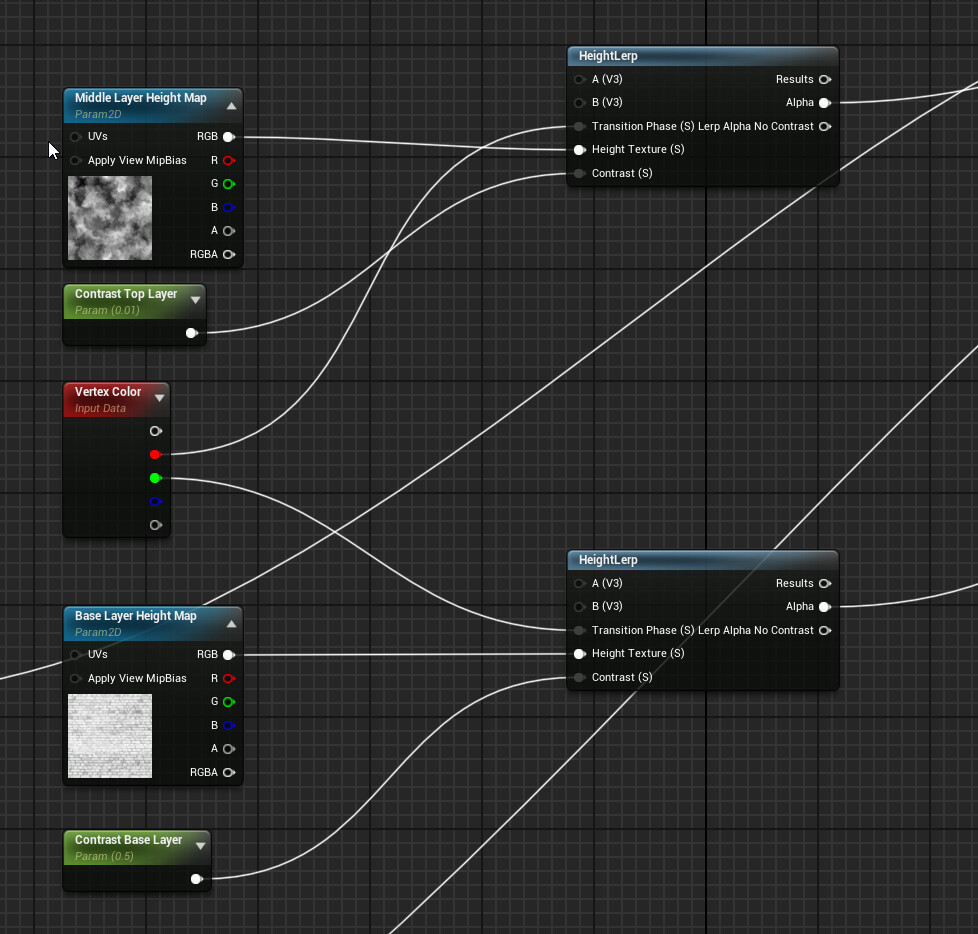
 Create a material with different textures to want to apply. Use a vertex colour node to combine them. Make a note of which RGB channels are controlling which texture.


A lerp node would also be suitable, but a Height Lerp node using a height texture will help blend it and influence the result with more realism. 


When using vertex painting, the more vertices on the mesh the higher the accuracy resolution. This can cause optimisation issues later if you are using multiple assets and landscapes with extremely dense polycounts.


In the editor, select Mesh Paint Mode and select Paint. Use the channels to select the texture and then start painting directly onto the asset. You're creating a mask so white is positive and will be seen whilst black will remain hidden.


Example result of vertex painting within the editor:


Report

Unreal Engine - My Material Functions Set up

Tutorial / 29 March 2024

Material Functions are powerful and a necessity for any project. Having just a few will increase your workflow dramatically and help save time when creating new materials. Material Functions are little snippets of Material graphs that can be saved in packages and reused across multiple Materials. 

Material Functions allow complex Material Graph networks to be saved out and quickly reused in other Materials, while also allowing more complex networks to be abstracted into single nodes, making material creation easier for artists. Best of all, edits to a single function are propagated throughout all networks which use it. So, if you need to make a fix or change to how a function works, you will not have to make further edits to the many materials which may be using that function. 

Here are a few of mine in more detail. 

MF_Albedo is a fairly basic material function which will allow you to change the texture map, desaturation, brightness and contrast:

MF_Albedo_Detailed adds another texture map with a lerp and scalar parameter, layered with a blended overlay. A switch has been added but it's necessary:

MF_Albedo_Light gives only control over the texture map and a tint parameter. Very useful for keeping things simple and not resource-heavy:

As above the same principles can be applied to other texture maps. The MF_Normal has a Flatten normal parameter to control the intensity. Very useful to help bring up details or knock back textures which are looking too strong:

And of course, there's nothing wrong with adding a little extra flavour to a material by adding another Normal map. The texture coordinate scalars and flatten normal functions will give that needed control to avoid mismatches. When using the coordinate scalar, the texture map must be tileable or you'll get edge lines:

MF_ORMS connects directly into AO, Roughness, Metallic and Specular with basic parameter controls:

MF_ORMS_Detailed adds another texture map and layers them using a Lerp and Blend overlay:

MF_ORMS_Light is probably used the most. Providing limited parameter control it's perfect for premade assets:

Using the material custom UV element is slightly cheaper than adding texture coordinates for UV control into all the texture maps. Adding a simple material function to control this can be really quick and useful:

Material Function nodes can be dropped into your custom material. They may look simple and almost the same, but can be incredibly complicated. Creating a set of custom Materials functions and Master Materials are the break and butter of a digital unreal artist and will continue to grow and develop as your knowledge increases.

M_Basic:

M_Basic_Detailed:

M_Basic_Adv:

If you want to check them out or add them to your own, download them here.  They have been built in 4.27 and you can just drop them into the project contents folder. :)

Report

Unreal Engine - My Basic Master Material Set up

Tutorial / 13 March 2024

Every project there are a few things you need to do every time. Usually, this is creating a material library. Tedious, but it's important to get it right at the start as having to change this stuff can be a time-consuming nightmare. Having a set of standardised Master Materials to import into the project can really save a lot of time. I have a few different sets including some crazy advanced materials and functions. But more on that later. Today is all about the Basics.

The 'Lite' set up is day 1 stuff. This is the basic input for setting up the materials in Unreal. No parameter-driven controls or tints, just the maps:

Below, we have the same set-up but with some controls, perfect for material instancing. Texture coordinates for scaling are placed in the custom UV pin as this is a bit cheaper than individually adding it to all the textures:

So, it's all working but it needs a little bit of optimisation. 3D texture software like Substance Painter can output combined Maps called ORMS. These are mostly industry standard with the RGB channels used in the same way, but if you combine them yourself, you can use any channel for anything. This can be as lite as you want or as heavy. But don't be fooled into thinking that having a super master material with everything is the go-to for all your needs. If the texture artist has done a spot-on job and you don't need to alter anything then just use a lite material. This will not only optimise your project but also reduce the file size when shipping. Some background assets only really need an Albedo and a tint!

Masked Materials are cheaper than Transulcent (and if shipping on mobile / VR, use Additive rather than Translucent.)

This material set-up is the same as the ORMs basic but it's using an opacity mask. Usually, this can be applied to the Alpha in the Albedo texture but using a switch we can also add it later as a separate mask without having to redo work. It's good to plan out the material structures at the start of the project and stick to the same workflow for all artists:

Sometimes you need World Aligned Textures. Here the texture maps are separated into different parameter texture objects. Usually, you'll only need an Albedo and normal but it's possible to depending on the asset requirements:

When tiling in world space you can notice repetition of you're not careful. You can add noise maps to the base colour but also combine  a second set of maps with a different UV scale to create better textures:

This is probably as far as I would go with the basic materials. It's best to start creating Material functions to optimise the workflow and create better material organisation. Which leads me nicely into my next blog post.

If you want to speed up your workflow and download my Basic Master Materials, you can do so here. They have been built in 4.27 and you can just drop them into the project contents folder. 


Report

Unreal Engine - Advanced Channel Packing

Tutorial / 12 March 2024

An advanced optimisation technique for packing data into texture channels that allows you to represent all of the texture data needed for a material in just two texture samples. Using this method saves both texture memory and performance, but since you're packing non-normal data in with the normal map, you do lose a little bit of quality in the normal. It also requires doing some extra steps in the shader to unpack the normal data.

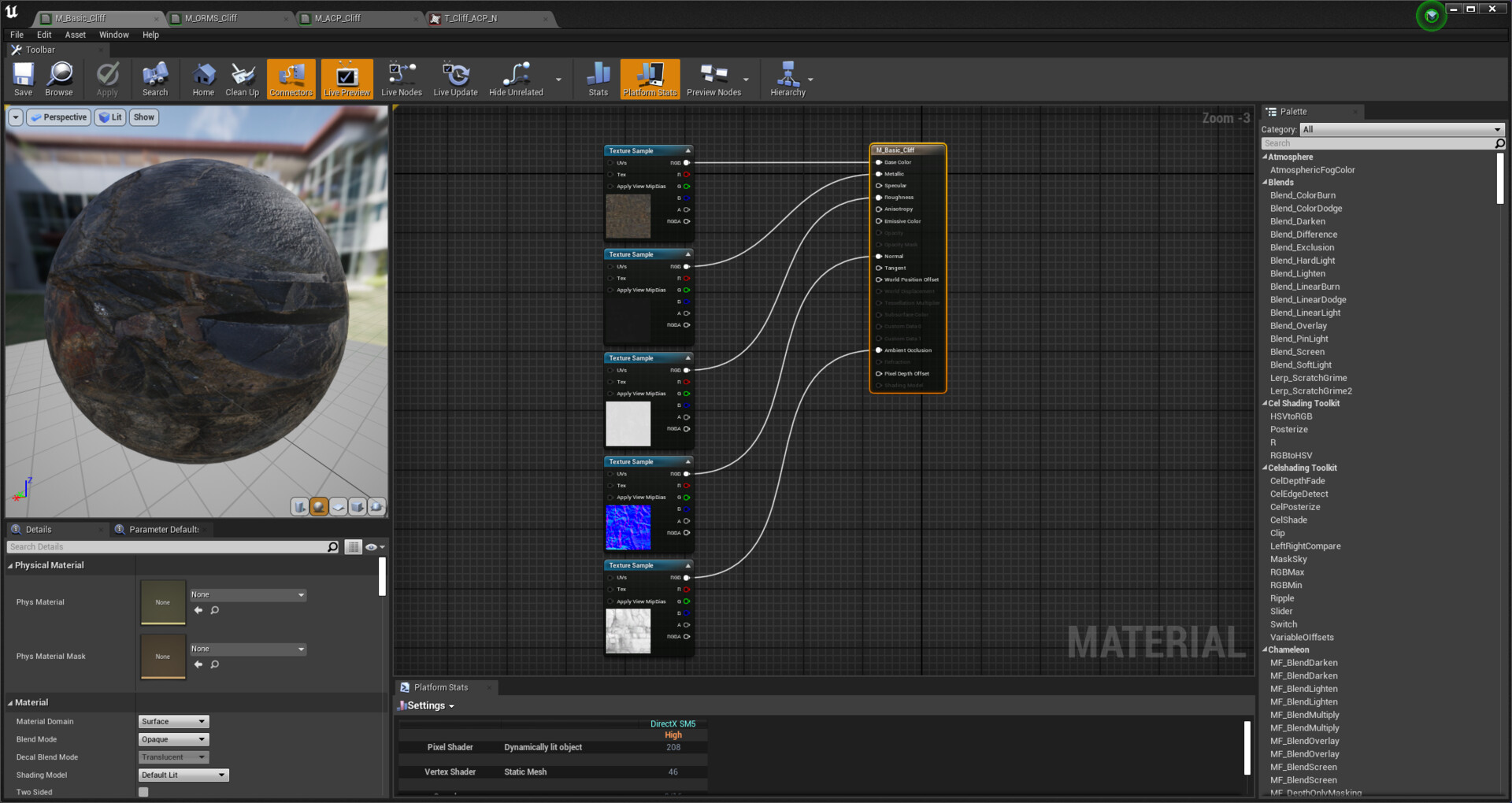
Basic 5-Map setup:

1. Albedo / Diffuse
2. Metalic
3. Roughness
4. Normal
5. Ambient Occlusion

ORMS 3-Map set-up:

Does exactly the same as the 5-Map material but in 3 texture maps.

1. Albedo / Diffuse 
2. Metal, Roughness and AO 
3. Normal

Advanced Channel Packing 2-Map set-up:

Does almost exactly the same as the 3-Map material but in 2!

1. Albedo / Diffuse + Roughness in the Alpha Channel
2. Red and Green Channel for Normal, Blue for AO

Make sure SRGB is set to off and to use BC7 in the compression settings for the textures, and blend mode is set to Linear colour.


Report